The second function performed by this third part of the page ExplicitPass you get with a touch on the SMS button whose written turns red. It highlights the new title INVIA SMS and the new box with the word "TELEPHONE". Clearly in this box you have to write the phone number of the recipient to whom you want to send the message encrypted. The Fig.11 shows this situation in which is illustrated an example of a message to be sent (fictitious phone number for obvious reasons). A second tap on the SMS button (red) starts the application responsible for the sending of said message.
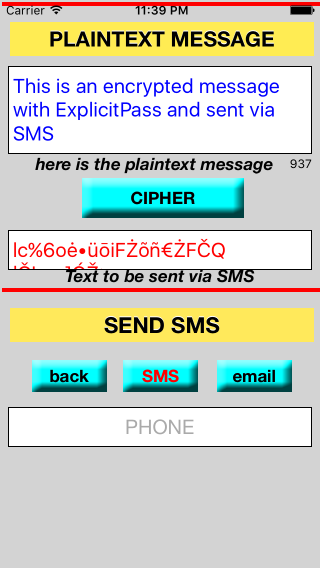
Fig.11 ExplicitPass on iPhone - Sending SMS
The third function of this last part of the page you get a touch on the email button which turns red. It highlights the new title SEND EMAIL two new box in which they appear the writtens EMAIL ADDRESS and OBJECT. The Figure 12 illustrates this further possibility with an example of a message to be sent. After writing in the relevant box address and object (fictitious for obvious reasons), a second tap on the email button start the application responsible for sending the email.
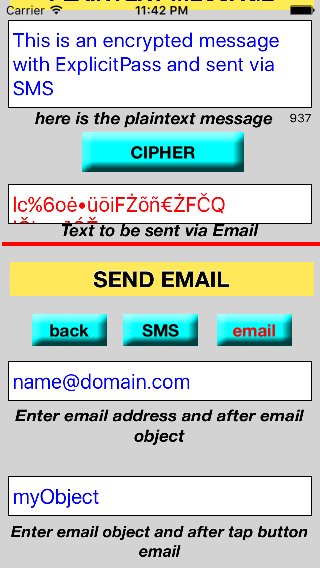
Fig.12 - ExplicitPass - Invio email
In both cases, sending SMS or email, written in italics below the boxes help the user to correctly perform these operations.